Algolia ID
Audience
Internal
Changes Made
Created Time in Notion
Oct 1, 2025 1:15 PM
Displayed Description
Glean bot
Last Edited At
Apr 7, 2026 9:42 PM
Last edited by
 Renée Carignan
Markdown
Notion Created By
 Optemization
Notion ID
Notion URL
Owner
Page Type
Article
Persona Types
Summary
Super URL
Verification
Zapier Sync Check (Don't Delete)
Zendesk API URL
Zendesk Article ID
Zendesk URL
Zendesk created
Zendesk last updated
body
category_name
draft
getting_started
section_name
top_level
Product | Workable integration |
Expert(s) | Enterprise EPD team |
Slack channel | |
This article was last verified on | 04/30/2024 |
Enabling for Customers
- When a customer wants to turn on their Workable integration, please let the Outreach Pod know (cc @Lacey K) so that we can turn on their “ATS integration type = Workable” first.
- For the Workable integration, customers need to gather a few Workable-specific details:
- their Workable subdomain [ https://XYZ.workable.com]
- Every Gem user will authenticate based on their company’s Workable Access Token (should be the same token for every user). They can get this token from their IT/Workable admin, under the ‘Integrations’ admin section of Workable. [token should look like a long string of numbers/characters]

Once #1+2 steps are done, customers are now ready to turn on the integration.
- Open up your Gem sidebar
- Click ‘Connect’ button, which will then display an authentication modal
- Enter you Workable Subdomain

- Enter the Workable Access Token in ‘Enter your Workable API key’ and submit
- Now you’re all set!

Dedupe & Upload Functionality
Duplicate check against Workable
- We surface potential duplicates based on name & email
- As with our other ATS integrations, we first check whether the candidate exists in Workable and show you in the minimized Gem extension.

- When duplicates are surfaced, user can ‘Merge with selected profile’ or ‘Upload as new candidate’

Upload as new candidate
Workable requires the following fields for upload:
- First Name, Last Name
- Application (via association to a Job)
Here’s an example of a candidate profile that’s ready to be uploaded - once you select a Job (thus creating an Application), the candidate can be successfully uploaded into Workable.


Successfully uploaded to Workable and associated with Job with Product Manager application!
Additional information
- We upload the following information to Workable
- Name
- Title
- Email address
- Application
- Resume PDF
- The uploaded candidate will show up as ‘Sourced’ status in Workable
- Watch-outs
- Workable requires an Application (as shown above) to upload the candidate initially. After this initial upload, you CANNOT upload another application to the same candidate.
- Since we authenticate based on the Workable team-wide Access Token, there’s a possibility that some permissions are not respected (for ex. you may be able to upload to jobs you may not have access to in the Jobs drop-down). We do by default hide any jobs listed as “confidential”.
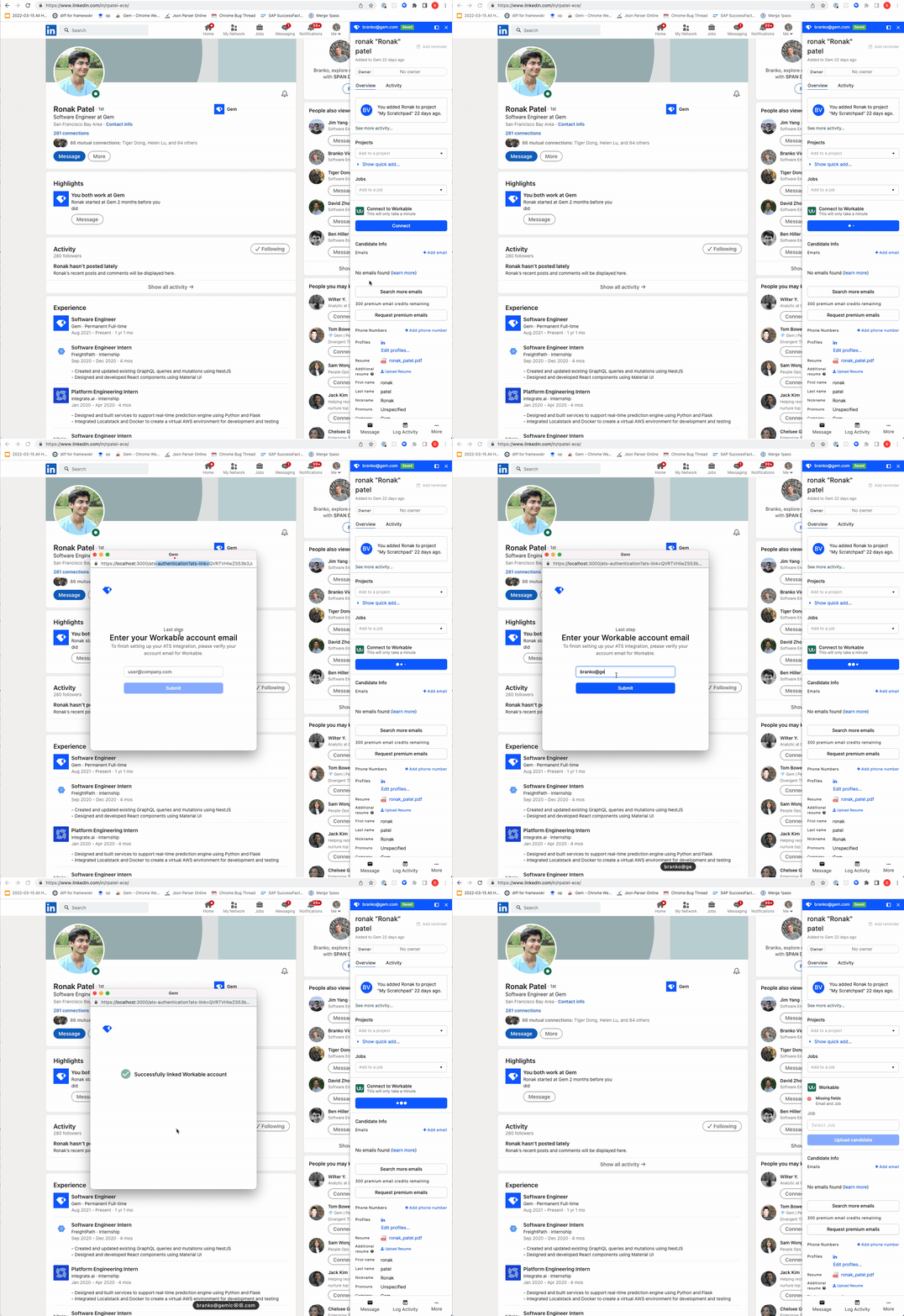
- If the Gem user’s email doesn’t match their email in Workable, we’ll ask you to enter the email associated with Workable
📖 Customer-facing Resources