 Renée Carignan
 Optemization
Overview of the product and expectations for CSMs and CS Managers
Last updated: Jul 2, 2024
Overview
Vitally is a Customer Success Platform that can help CSMs, Managers, and RevOps:
- Identify at-risk accounts
- Identify accounts that have the potential for expansion
- Measure book of business health and CSM performance
- Forecast upcoming renewals
- Automate lifecycle tasks, communications, and one-off events
- Capture feedback from customers and former customers
- Collaborate with customers via external documents
The implementation of Vitally began in June, and the first go-live took place on Jul 2, 2024. The initial go-live was mostly a migration of functionality from Catalyst, the previous Customer Success Platform at Gem.
Expectations
CSMs (Managed)
CSMs are expected to log into and action upon items with Vitally on a recurring basis. All expectations can also be found within the Overview of this Hub document, found under the “Customer Success Hub” in Vitally’s sidebar.
Daily expectations
- Review CTAs (calls-to-action) within the Action Center view in the “Customer Success Hub”, found in the sidebar
- This Action Center dashboard highlights Accounts/Opportunities/Contacts that need attention. For example, a customer account where a user has installed one of Gem’s competitor’s Chrome extensions may be highlighted here, along with specific follow-up CTAs
Bi-weekly expectations (Wednesdays)
- Review and update forecasts, sentiment, and risk fields within the Forecasting view in the “Customer Success Hub”, found in the sidebar
- This Forecasting dashboard has widgets highlighting accounts renewing within the next 3 quarters. In this view, we’re looking for your updates on a few things:
- Sentiment (Customer Sentiment, Customer Sentiment Reason, Customer Sentiment Reason Detail)
- Risk fields (At Risk/Off-Track, Reason Reason, Risk Status, Risk Notes)
- Forecasts (Total Renewal ARR (Forecasting))
Other expectations
Logging Notes
Frequency: After every call, risk identification, or ATS discovery session
Like with Catalyst, we’re asking that you log notes for key events and calls. The templates were migrated from Catalyst and slightly simplified.
To create a new Note, click the “+ Create new…” button on the bottom of the sidebar -> “Create note” -> then select the applicable template from the slide-out. (Alternatively, you can use the Tab + n shortcut!)
Updating Account Plan Roles
Frequency: After a new key stakeholder is identified
We use a field on the Contact object called Account Plan Role to designate a Contact’s role within an account: Decision Maker, Executive Sponsor, Economic Buyer, and so on.
To update a Contact’s Account Plan Role, navigate to the Contact’s page within Vitally, then update the field, found in the CS Key Fields widget of the User layout.
CSM Managers (Managed)
Managers also need to regularly use the platform to hold their team accountable to completing key tasks and understand their collective books of business.
Daily expectations
Managers should review all dashboards within “Manager Home” daily to ensure that no key tasks are overdue and to ensure that there are no surprises on any given account.
Weekly expectations
Managers should use Vitally to run one-on-one meetings with individual CSMs. It may be helpful to ask a CSM to screen share and discuss their personal “Customer Success Hub”s.
Scaled Success (Scaled CSMs, Renewal Managers)
While much of the Scaled workflow is automated, Scaled CSMs do have certain items to action on within Vitally.
Scaled CSMs
Daily expectations for Scaled CSMs
- Review “My To-Dos” within the Scaled CSM Home dashboard in the “Scaled Success Hub”, found in the sidebar
- This Scaled CSM Home dashboard highlights Accounts/Opportunities/Contacts that need attention. For example, a customer account where a user has installed one of Gem’s competitor’s Chrome extensions may be highlighted here, along with specific follow-up CTAs. It also shows high-level views of the Scaled book of business.
Renewal Managers
Daily expectations for Renewal Managers
- Renewal Managers are also expected to complete tasks as they are created. As of 7/17/24, the majority of tasks are related to the automated renewal sequence for Scaled customers. We current generate tasks with calls-to-action such as:
- Create a Dealroom
- Find a new contact to sequence (via a previously bounced email, or no Gem admin)
- Manually enter an opportunity into a renewal sequence
To find a list of tasks that are assigned to you, click the “My Tasks” button on the top left of the web app.
Other Expectations
Manually entering an opportunity into a sequence
Frequency: After receiving a task stating that you must manually enter an opportunity into a sequence
Renewal reminder emails are automated for Scaled customer accounts. If, for whatever reason, you need to manually enter an opportunity into a renewal sequence, you can take the following steps.
- Navigate to the opportunity in Vitally
- Scroll down to the “Scaled Sequencing Information” section of the Opportunity
- Find the field Vitally-only: Manually enter in renewal sequence
- Select the value “True”
- Once this is complete, the opportunity will enter the renewal sequence
- Note: please be sure to do this as close as possible to 90-days before renewal to ensure that we don’t send renewal sequence emails after the customer’s expiration date.
To view the last email that was sent via the renewal sequence, see the value in the field Catalyst - Renewal Sequence Status
Getting Started
Logging in
Log in via SSO at gem.vitally.io. Once logged in, if you do not see Hubs relevant to your role in the sidebar, reach out to the #cs-ops channel in Slack.
Connecting your Gmail
It’s critical that users connect their Gmail instances to Vitally to ensure that messages and activities are logged against the relevant account. To do so, follow the instructions here.
Slack Notifications
If you would like to receive Slack notifications when a new Task is assigned to you, navigate to Settings from the top left of the web app, then Notifications, then toggle “Notification Slack Messages”
Functionality
Notes
Vitally has the ability to create Notes and sync them to Salesforce. Within Gem, we use 4 key Note templates:
- Scaled Mid-Contract Review TEMPLATE
- Used for a mid-contract check-in for a Scaled customer. Log one of these notes every time a mid-contract check-in takes place.
- Logging Calls TEMPLATE
- Used to track notes and next steps for Managed customers. Log one of these notes every time a call takes place.
- 🗃️ ATS Discovery Template
- Used to track information about the customer’s ATS instance and its known or approximate renewal date. Log one of these notes when we learn new information about the ATS.
- 🚨 At Risk Escalation TEMPLATE CUSTOMERNAME [rename]
- Used to outline risks associated with a given account. Log one of these notes when you identify risk on an account.
An important note (about Notes): If you have a call where you discuss ATS AND Risks, you do not need to log multiple notes. Every note template has references to Salesforce fields that track each datapoint, and many of these fields are located on every note template.
More information about Vitally’s Notes can be found here.
Tasks
Tasks are ‘to-do’s’ for users of Vitally. They are generally created automatically at key
trigger/inflection points within the customer journey.
More general information about Vitally’s Tasks can be found here.
Competitor Extension Installs
As of June 3, 2024, there is only one task that generates for managed CSMs, and this is a task to follow up with a customer when we determine that a user has installed a [Gem] competitor’s extension. SLAs and specific CTAs depend on the specific extension that is installed, and expectations for the CSM will be outlined in the task itself.
These tasks are generally due within 2 business days.
Scaled Success Tasks
Within the Scaled team, tasks are generally more tactical. You will receive tasks for things such as an Opportunity that is coming up for renewal that is missing a Deal Room, or a notification that an email has bounced. CTAs and due dates will be clearly outlined in the Tasks themselves.
Conversations
Conversations are Vitally’s concept of messages. A conversation can be either an email or another type of communication with a customer, such as via Zendesk tickets. More information about Conversations can be found here.
Projects
We are not yet using Vitally’s Projects capability, but general information about these can be found here.
Docs
We are not yet using Vitally’s Docs capability, but general information about these can be found here.
NPS
We are not yet using Vitally’s NPS capability, but general information about these can be found here.
Layouts
Vitally page layouts are fairly customizable. General methodologies can be found below.
Account Overviews
Account layouts differ depending on the Segment of the account. Not every managed field in Salesforce/Vitally is relevant to the Scaled team, and vice versa; as such, we are being selective about what information we show for each account.
Generally, status account, team, and contractual information can be found on the sidebar, and dynamic and/or qualitative information can be found in the main body.
Opportunity Slideouts
Like with the Account layouts, we are being selective of the fields that we show. Opportunity layouts are broken out into various sections with a few related fields in each.
Quick Tips
Quick Search - CMD/ALT + /
Key Links
- Vitally App
- Vitally Help Center
- Kick-off call recording
Questions, comments, and feedback
If you have feedback about the implementation of Vitally that is specific to Gem (e.g., not a bug report that should be filed with Vitally Customer Support), please reach out to the #cs-ops channel in Slack.
Administration
Notes for Vitally admins can be found below.
New User Signup
When a new user signs up, ensure that their permissions are set appropriately in Settings. Gem is charged for any non-Observer seats, so ensure that any new user that is not making edits within the platform is set to Observer.
Add to Hubs
New users should be added to certain Hubs, depending on their role.
- Managed CSMs should be added to the “Customer Success Hub”
- Scaled CSMs should be added to the “Scaled Success Hub”
- CS Managers should be added to the “Manager Hub”
Instructions to log Product Swaps
Updated on 7/31/2024 with new Opportunity Type = Product Swap
Step | Detailed Instructions for CSMs | Screenshots | Files |
|---|---|---|---|
|
|  | |
| |||
Step 1: Create an Opportunity in Salesforce | Look up account > Opportunities > select Current Term opportunity (Contract Start Date is before today and Contract Expiration Date is after today) that is CLOSED WON. Carrot dropdown > Add Product Swap Product Swap type will automatically set the following fields from the renewal opportunity Close date, Opportunity Type = Product Swap, and ‘$0 Product Swap Expansion Opp?’ field = TRUE Contract expiration date should be the upcoming renewal date (should be in 2023 or 2024). | 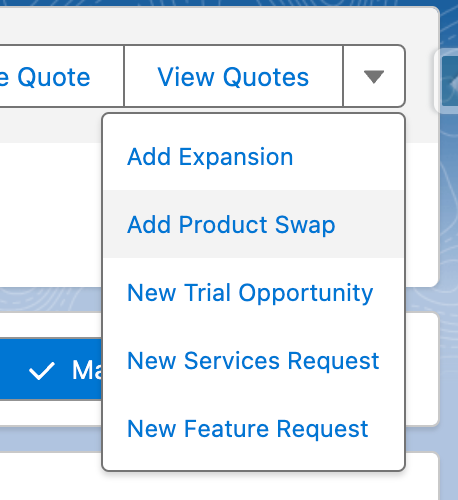 | |
Step 2: Create DealHub record in Expansion Opportunity | Carrot dropdown > “Create Quote” Add SKU’s we are looking to swap • DO NOT use free SKUs • Add SKUs at list price, discount by 100% PLATFORM DETAILS [If swapping to Forms/Campaigns] > Select Platform > Yes > “Advanced CRM” LICENSE DETAILS [If swapping to App Review or Talent Pipeline] > “Add Full Cycle recruiter Licenses?” > Yes • “Number of Full Cycle Recruiter Licenses” > add value • DO NOT use “Free Full Cycle Recruiter Licenses” [If swapping to Hiring Manager] > “Add Hiring Manager Licenses?” > Yes ADDITIONAL PRODUCTS [If swapping to Talent Compass] > “Talent Compass” > Yes “Talent Compass Tier” > Advanced | ||
Step 3: Apply discounts in DealHub record in Expansion Opportunity | Scroll down Put 100 for Sales Discount This will be submitted for Dold to approve. When submitting proposal, add Product Swap details in notes. | 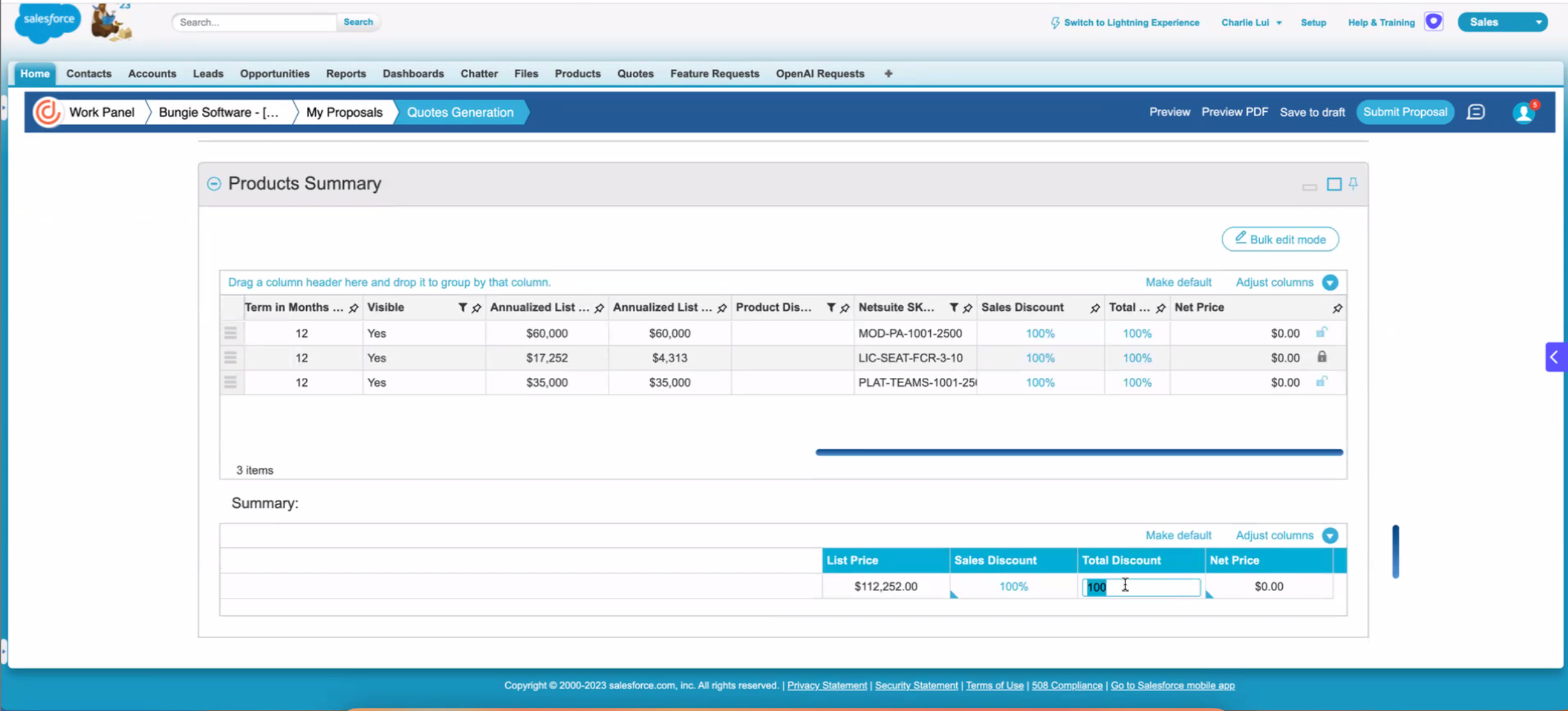 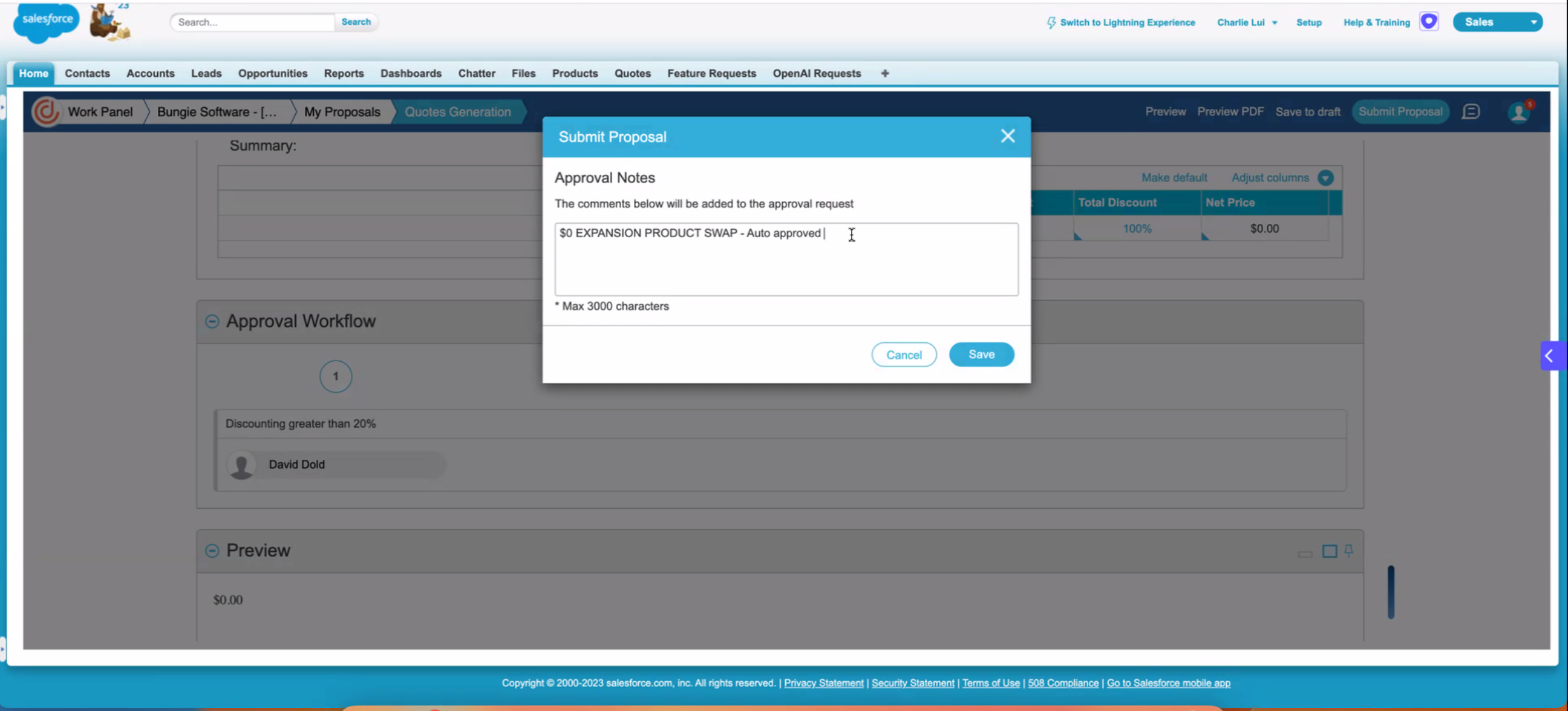 | |
Step 4: Mark Product Swap Opportunity as Closed Won. | Dold will approve it. Confirm “Link to Contract” field is populated with the link to 100% discounted DealHub proposal “Renewal Details” > mark as Closed Won Need to fill out Closed Won Customer Success Notes, License Type, Number of Licenses, Custom MSA, and Product Type | 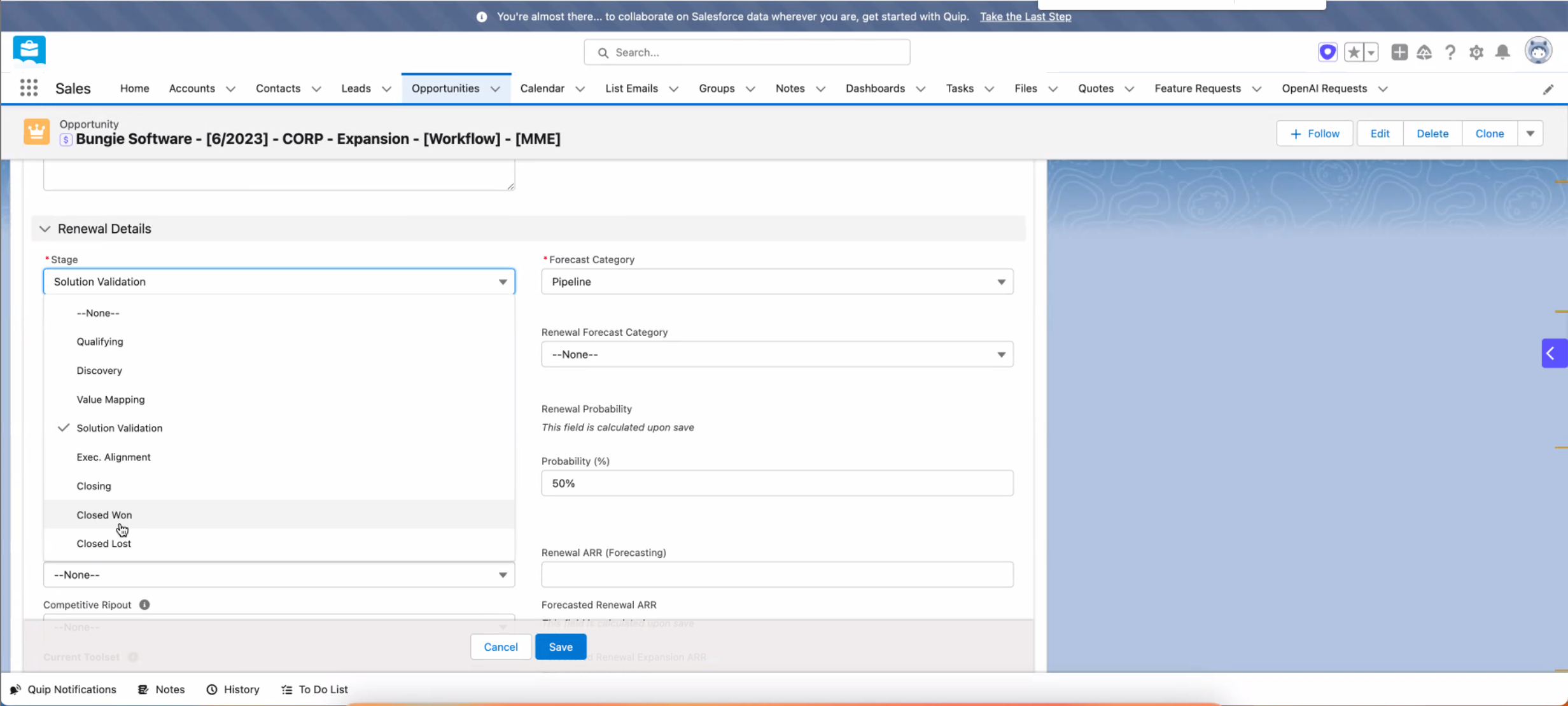 | |
Step 5: Turn on functionality. Reach out for training + success. | Focus on turning on features, trainings, and driving product adoption. Incremental Warm ARR from these swapped products will be rolled up into overall Warm ARR numbers; no additional action needed if above steps were followed correctly. | ||
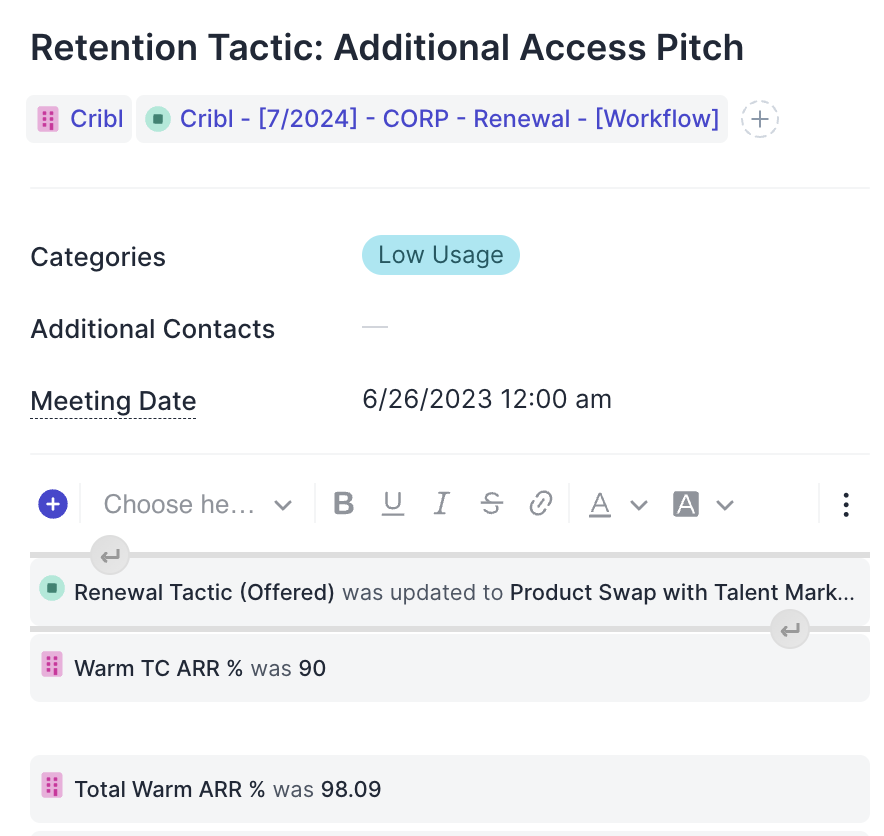
At renewal time: Step 6: Log renewal tactic closed at Renewal Opportunity | Go to Renewal Opportunity. For “Renewal Tactic (Closed)” > mark what actually stuck for swapped products. Mark as Closed Won (hopefully). | 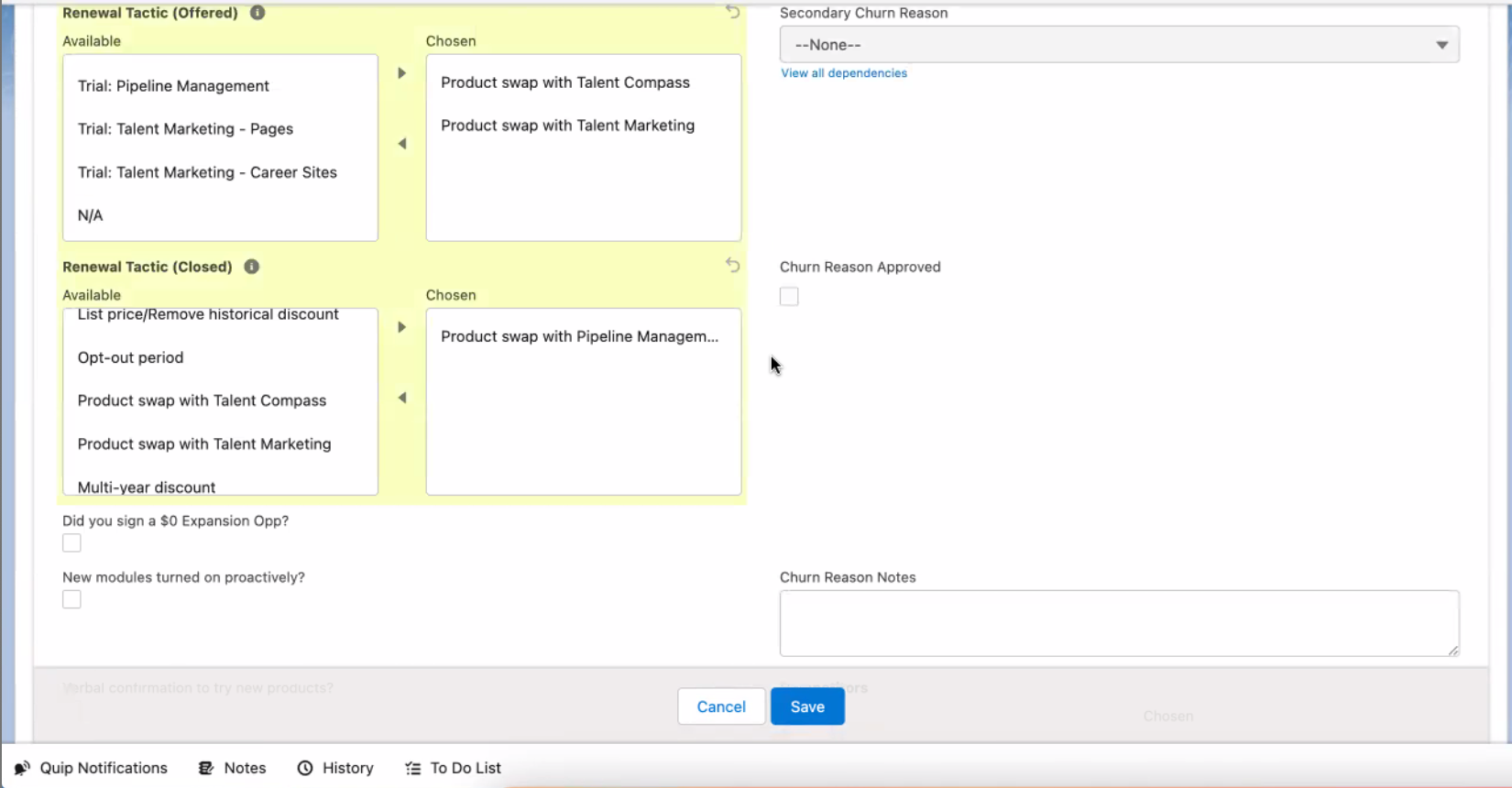 |
- Overview
- Expectations
- CSMs (Managed)
- Daily expectations
- Bi-weekly expectations (Wednesdays)
- Other expectations
- Logging Notes
- Updating Account Plan Roles
- CSM Managers (Managed)
- Daily expectations
- Weekly expectations
- Scaled Success (Scaled CSMs, Renewal Managers)
- Scaled CSMs
- Daily expectations for Scaled CSMs
- Renewal Managers
- Daily expectations for Renewal Managers
- Other Expectations
- Manually entering an opportunity into a sequence
- Getting Started
- Logging in
- Connecting your Gmail
- Slack Notifications
- Functionality
- Notes
- Tasks
- Competitor Extension Installs
- Scaled Success Tasks
- Conversations
- Projects
- Docs
- NPS
- Layouts
- Account Overviews
- Opportunity Slideouts
- Quick Tips
- Key Links
- Questions, comments, and feedback
- Administration
- New User Signup
- Add to Hubs
- Instructions to log Product Swaps