Overview
With this Gem feature, you can send self-scheduling links that sync with your Google or Outlook calendar, streamlining candidate scheduling for phone screens and one-on-one calls — no extra integrations needed.
This feature is separate to the self-scheduling functionality available as part of Gem Scheduling. For information about self-scheduling in Gem Scheduling, please refer to Self-scheduling in Gem guide.
Eligibility
The self-scheduling functionality is available to all teams on the Advanced CRM package, regardless of ATS (we don’t integrate with your ATS currently).
For teams using Outlook, Self-Scheduling in Gem also requires the following permission to function (in addition to the permissions detailed in Configuring consent for Gem in Microsoft Office 365:
Calendars.ReadWriteThis allows us to have access to the users calendars to read events and to write the new scheduled events.
Set up top-of-funnel self-scheduling
To set up top-of-funnel self-scheduling for the first time, please follow these steps:
- Select your account at the bottom of the main sidebar, then select the Profile settings option in the dropdown.
- Select the Scheduling tab.
- Select Sign in with Google or Outlook to grant additional calendar write access so that meetings can be scheduled on your calendar.
- Set your availability (i.e. which hours of which days will be available for scheduling) in the Set available hours section.
Create a top-of-funnel self-scheduling link
With top-of-funnel self-scheduling set up, the next step is to create an interview and a self-scheduling link. Follow these steps:
- Select the + new meeting type button to create an interview, which you can then invite candidates to self-schedule. The available fields for an interview include:
- Title (visible on the calendar event)
- Description (visible on the calendar event)
- Duration (visible on the calendar event)
- The scheduling window
- The minimum buffer time
- Video conferencing (Zoom, Google Meet, or Teams)
- The custom part of the URL slug (the URL will consist of your team name + user email + custom URL)
- Requested candidate fields (these fields create and/or update a Gem person when a meeting is scheduled)
- Select the Save Event button once you’ve filled in all of the interview details.
- With the interview created, you will see it included in the Meeting events section.
- From here, select the Copy Link button to copy the URL, which you can then include in emails to candidates inviting them to self-schedule.
How candidates self-schedule
When a candidate follows a top-of-funnel self-scheduling link, they will be taken to a form where they can choose a date and time to schedule the interview.

When a candidate completes this form:
- Both the candidate and the interviewer will receive a calendar invitation with details of the scheduled interview.
- The interviewer will also receive an email confirming that the candidate has booked time on their calendar.
Cancel or reschedule a top-of-funnel interview
Candidates can either cancel or reschedule a top-of-funnel interview in two ways:
- Using the Cancel meeting or Reschedule meeting buttons on the confirmation page shown immediately after booking.
- Using the Click here to reschedule or cancel link in the calendar invitation (which takes the candidate back to the confirmation page, and the two buttons above).
Note that when a candidate cancels an interview, the event is removed from their calendar however they do not receive an email notification.
How to include self-scheduling links in Gem sequences
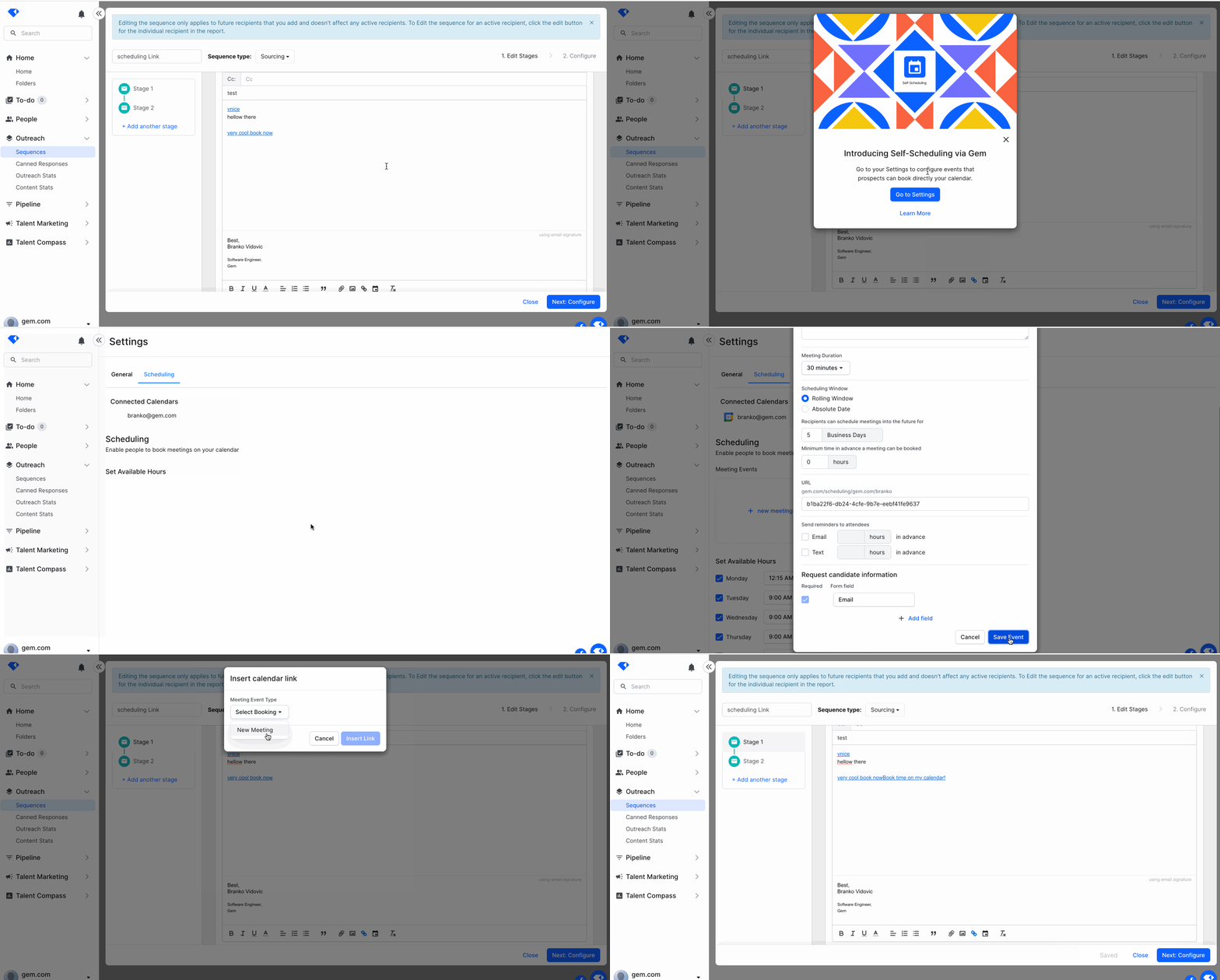
To include self-scheduling links in sequences, there is an icon in the editor for inserting links, beside the hyperlink icon. If you don’t have any meetings set up, and onboarding modal will take you to your Settings > Scheduling page.
Troubleshooting
Gem requires a connection with your calendar for this feature. If both are disconnected, you may experience scheduling page loading or booking problems. You can reconnect Gem with your calendar by visiting the following link and signing back in: https://gem.com/api/upgrade-calendar-provider-access
FAQ
Q: Can I use this for scheduling interviews?
A: Yes, but we don’t integrate with your ATS so it won’t auto-update in your ATS.
Q: If a candidate books time, but doesn’t respond to my email, will the sequence stop?
A: Yes!
Q: Can I report on anything scheduling related?
A: Not yet, but if you have feedback on this, please let us know!
Q: What happens if I travel / change time zones & want my time zone to change?
A: You will need to go into settings and manually change your time zone.
Have any issues or questions on this topic? Please feel free to contact your dedicated Gem Customer Success Manager directly or our Support team at support@gem.com.